
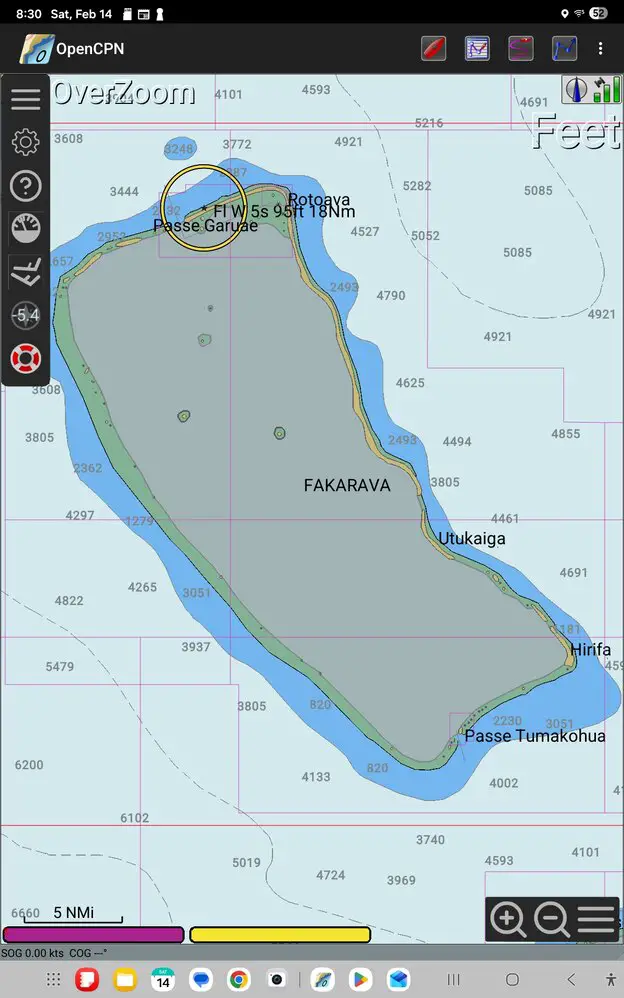
This article addresses how to be able to store OpenCPN charts on an external Micro SD Card (SD Card). Since the internal storage on many tablets is somewhat limited and fills up fast, it is very convenient and easy to add an SD Card to increase your storage, especially for people using apps that use a lot of storage area for files like the OpenCPN charts do.
First of all, you need to have the paid version of the app. The free version (not offered anymore on Play Store) does not have the option to access charts on an SD Card. I think that was my issue initially. The paid version is US $10, so not a huge amount.
It is somewhat important to do these steps in sequential order to maximize keeping all of your app and data storage on the SD Card. I learned this by trial and error, doing this will save you a lot of time and frustration. At minimum I recommend a 64G card, but 128 or 256 is better, depending on how much you use your app and what you use it for. Many OpenCPN users use sattelite images, if you do this consider getting a SD Card with a lot of storage.
Next, load the Open CPN app to your device from the Play Store. Once it is loaded, go to Settings/Apps/Open CPN/Storage and Change the location of the app to the SD Card. This is important to do first, if you want to minimize the amount of internal storage on your device.

Next you need to put the SD Card into your tablet and format it. First insert the card, then format it by going to Settings/Device Care/Storage/SD Card where you can click on the three ellipses and click Format.
Next you need to get the charts to the correct place on the SD Card so Open CPN can access and read it, this is really the tricky part. For some reason, the area that Open CPN can access is very limited, so you cannot just create a file and navigate to it when looking for the charts in Open CPN via the chart directory.
You can use a free app called Total Commander to move files around on your Android based tablet, but this is much more cumbersome than just loading the filed directly from your computer to the SD Card. For this reason, this is going to be beyond the scope of this article. I prefer to load the files directly from my computer to the SD Card. So take the SD Card out of your tablet and put it into your computer, usually with an adapter.
To load the chart files from the computer you need to first make sure you have the correct directory I have done this on a few different tablets, and for some reason they don’t always show up the same way, but ultimately what you are looking for is the Chart file that Open CPN will have created when you loaded the program. See below in the photo, the directory is /storage/54C6-2A21/Android/data/org.opencpn.opencpn/files/Charts. So when you click on the SD Card file in your computer you would be looking for the Android folder, then data, then org.opencpn.opencpn, then files, then Charts. All of your charts need to be placed in this Charts folder for your app to locate them. If you wish, you can place different files inside of that Charts file, as I have done, to separate them out for organization purposes. But, all of your charts need to be in that file.
Once you do that, then take the SD Card and place it into the tablet. You’re on the home stretch.
Last, go to the Open CPN app and to the charts Directories and click on Add Directory, this will take you to the area where you can select the SD Card on the top right. Once you select it the Charts file at the top is where you want to click.

The image above is what you should see after you click on Charts. See how I have three different files. I can add a directory to each file, or add files later and add another directory.
Let me know if any of this is unclear or needs to be revised.